Introduction
Ghost gives developers a powerful templating system that makes it easy to create completely custom website layouts.
With custom templates, you can build:
- archive pages
- custom homepages
- portfolio layouts
- landing pages
- membership pages
- category pages
- author pages
- advanced magazine layouts
This is one of the most powerful features for Ghost theme developers.
In this guide, we’ll explore how custom templates work and how to use them inside your Ghost themes.
What Are Custom Templates in Ghost?
Ghost themes use:
- Handlebars (
.hbs) files - routing
- dynamic content helpers
to control the website layout.
Custom templates allow you to create different designs for:
- pages
- posts
- tags
- authors
- collections
instead of using the same default layout everywhere.
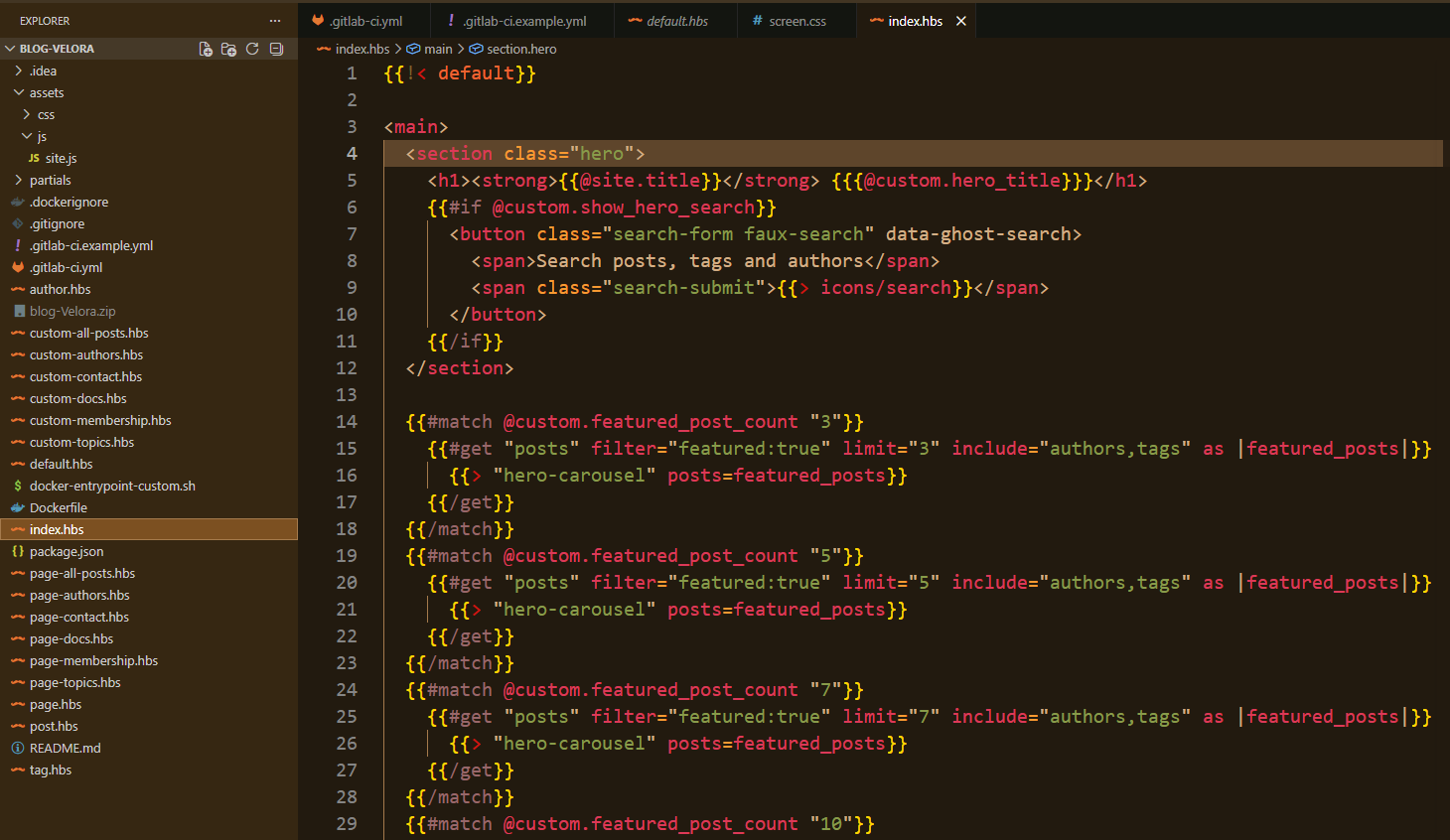
Ghost Template Structure
Step 1 — Access Your Theme Files
Ghost themes are located inside:
/content/themes/YOUR-THEME/Inside this folder, you’ll find:
- Handlebars templates
- assets
- partials
- routes
- helpers
Real Example From My Workflow
When building Ghost themes for my marketplace, I usually organize templates into:
- reusable partials
- homepage sections
- custom page templates
- dynamic magazine blocks
This keeps the theme:
- cleaner
- easier to scale
- easier to maintain
Step 2 — Create a Custom Page Template
Let’s create a custom archive page.
Create:
custom-archive.hbsExample:
{{!< default}}

<section class="archive-page">
    <h1>All Articles</h1>

    <div class="post-grid">
        {{#foreach posts}}
            <article class="post-card">
                <h2>
                    <a href="{{url}}">
                        {{title}}
                    </a>
                </h2>
            </article>
        {{/foreach}}
    </div>
</section>
This creates a fully custom archive layout.
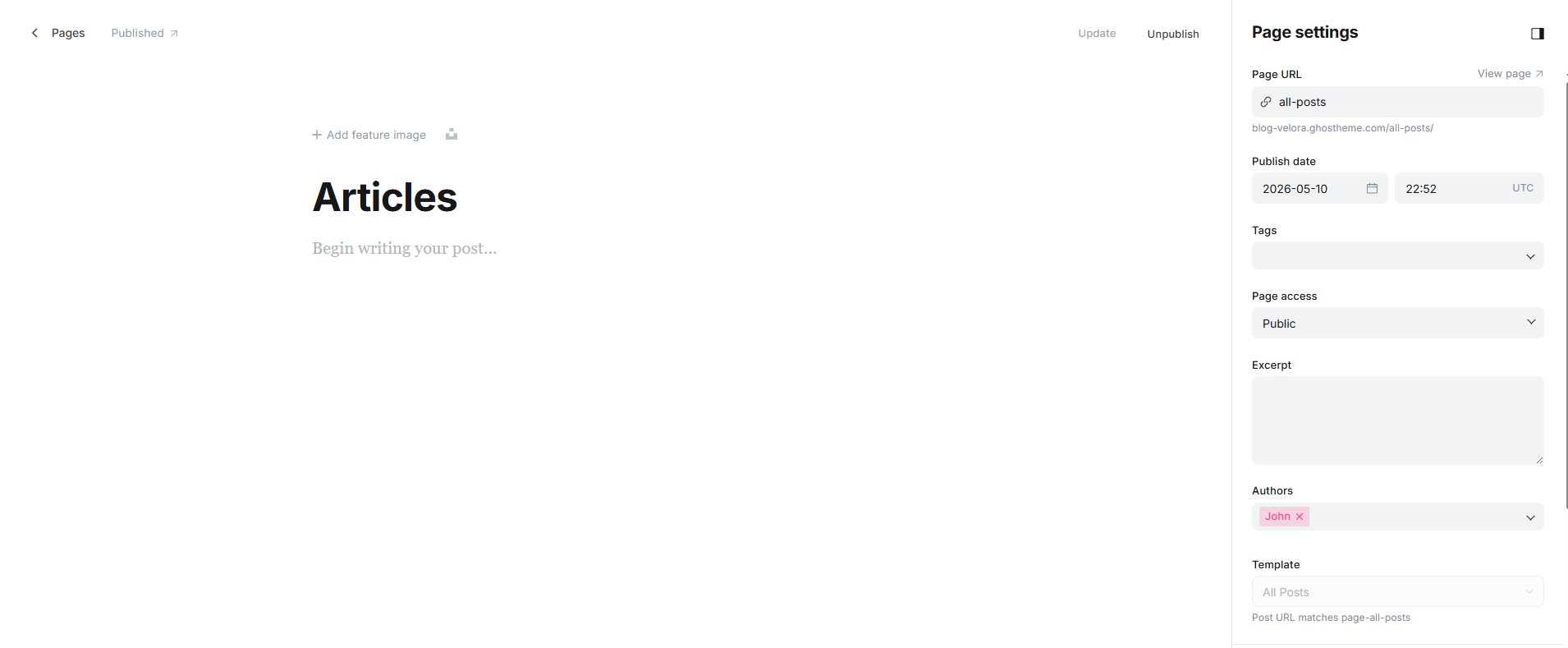
Step 3 — Assign the Template in Ghost Admin
Inside Ghost Editor:
- Create a new page
- Open Page Settings
- Find:
Template- Select:
custom-archiveGhost automatically applies the template.
Step 4 — Use Partials
Ghost themes often use partials to reuse components.
Example:
/partials/header.hbsThen include it:
{{> "header"}}This keeps themes modular and organized.
Step 5 — Create Advanced Layouts
Custom templates allow you to build:
- featured article sections
- sliders
- hero layouts
- portfolio grids
- magazine sections
- membership landing pages
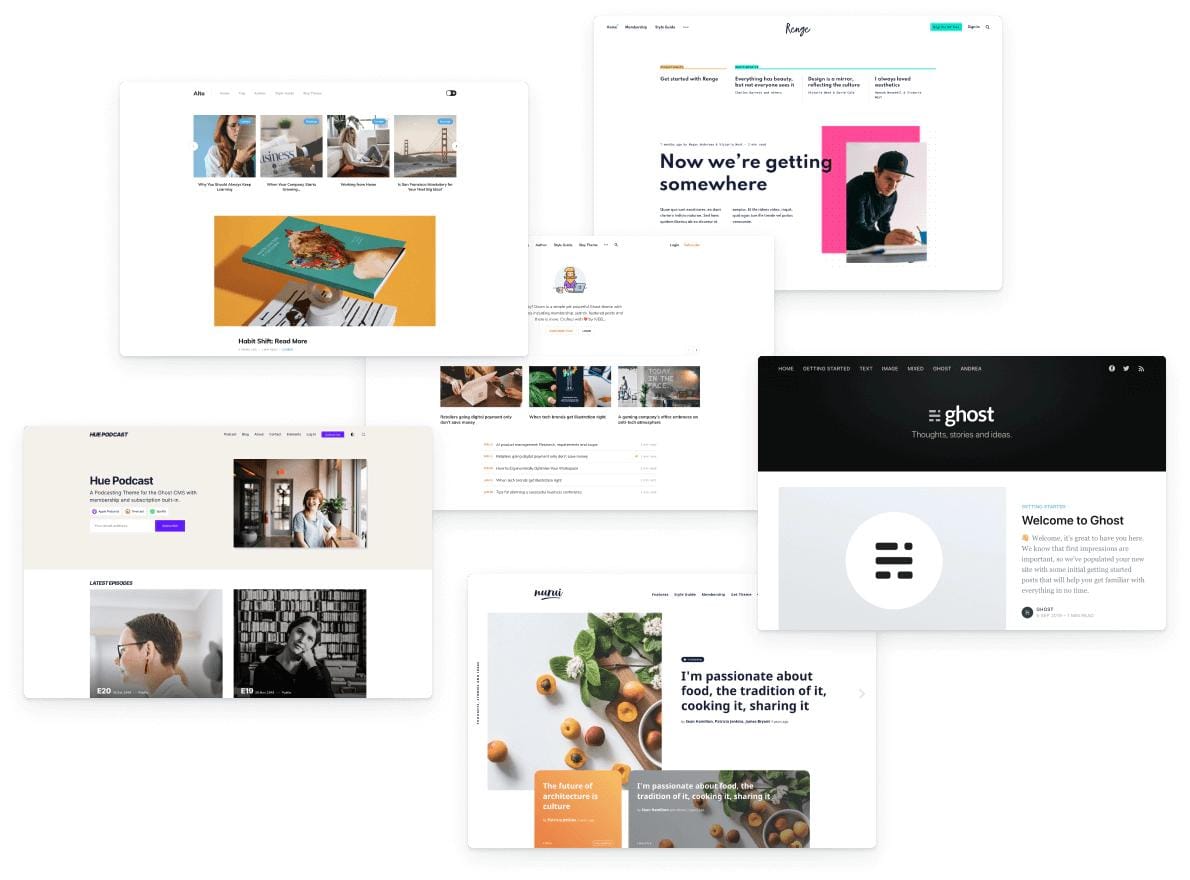
This is how premium Ghost themes create unique designs.
Example: Featured Posts Section
{{#get "posts" filter="featured:true" limit="3"}}
    {{#foreach posts}}
        <article>
            <h2>{{title}}</h2>
        </article>
    {{/foreach}}
{{/get}}
This dynamically loads featured articles.
Step 6 — Customize Routes
Ghost also supports advanced routing using:
routes.yamlThis allows:
- custom collections
- dynamic URLs
- channel pages
- custom archives
Example:
collections:
  /tutorials/:
    permalink: /tutorials/{slug}/
    template: tutorials
Very powerful for large publications.
Real Developer Tip
From my experience building Ghost themes, custom templates become much easier to manage when you:
- separate components into partials
- avoid huge template files
- reuse sections
- keep consistent naming
This becomes especially important for:
- magazine themes
- portfolio themes
- multi-layout websites
Common Mistakes
1. Overcomplicated Template Structure
Keep your files organized and modular.
2. Duplicating Code Everywhere
Use partials instead.
3. Ignoring Mobile Layouts
Always test templates on:
- desktop
- tablet
- mobile
4. Poor Naming Conventions
Use consistent names like:
- custom-contact.hbs
- custom-archive.hbs
- custom-membership.hbs
Why Custom Templates Matter
Custom templates are one of the biggest reasons Ghost themes feel:
- modern
- flexible
- premium
They allow developers to create unique experiences while keeping content management simple.
This is especially important for:
- marketplaces
- creators
- magazines
- premium publications
Final Thoughts
Custom templates unlock the real power of Ghost theme development.
With the right structure, you can create:
- highly customizable layouts
- dynamic homepages
- advanced content systems
- beautiful modern themes
—all while keeping Ghost fast and clean.
For theme developers, mastering templates is one of the most valuable Ghost skills.