
Introduction
Ghost focuses on modern publishing, performance, and memberships.
Unlike some CMS platforms, Ghost does not include a traditional comment system by default.
However, adding comments to Ghost is actually very easy.
You can integrate:
- native discussion tools
- lightweight comment systems
- community platforms
- member discussions
depending on your website goals.
In this guide, we’ll explore the best ways to add comments to a Ghost website.
Why Comments Matter
Comments can help:
- increase engagement
- build communities
- improve user retention
- encourage discussions
- increase time on site
They work especially well for:
- tutorials
- newsletters
- magazines
- creator blogs
- educational content
Option 1 — Ghost Native Comments (Best Modern Option)
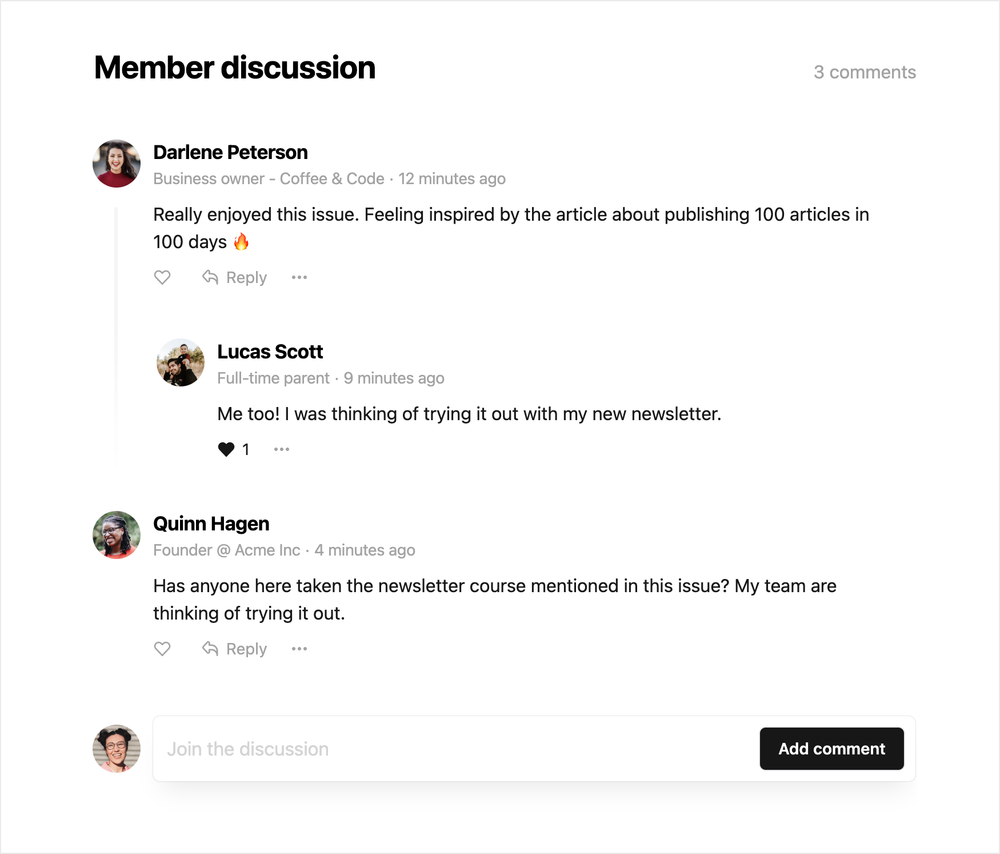
Ghost now supports native commenting for members on supported plans and configurations.
This allows:
- logged-in member discussions
- clean UI integration
- reduced spam
- better moderation
It works especially well for:
- membership websites
- newsletters
- creator communities
How to Enable Native Comments
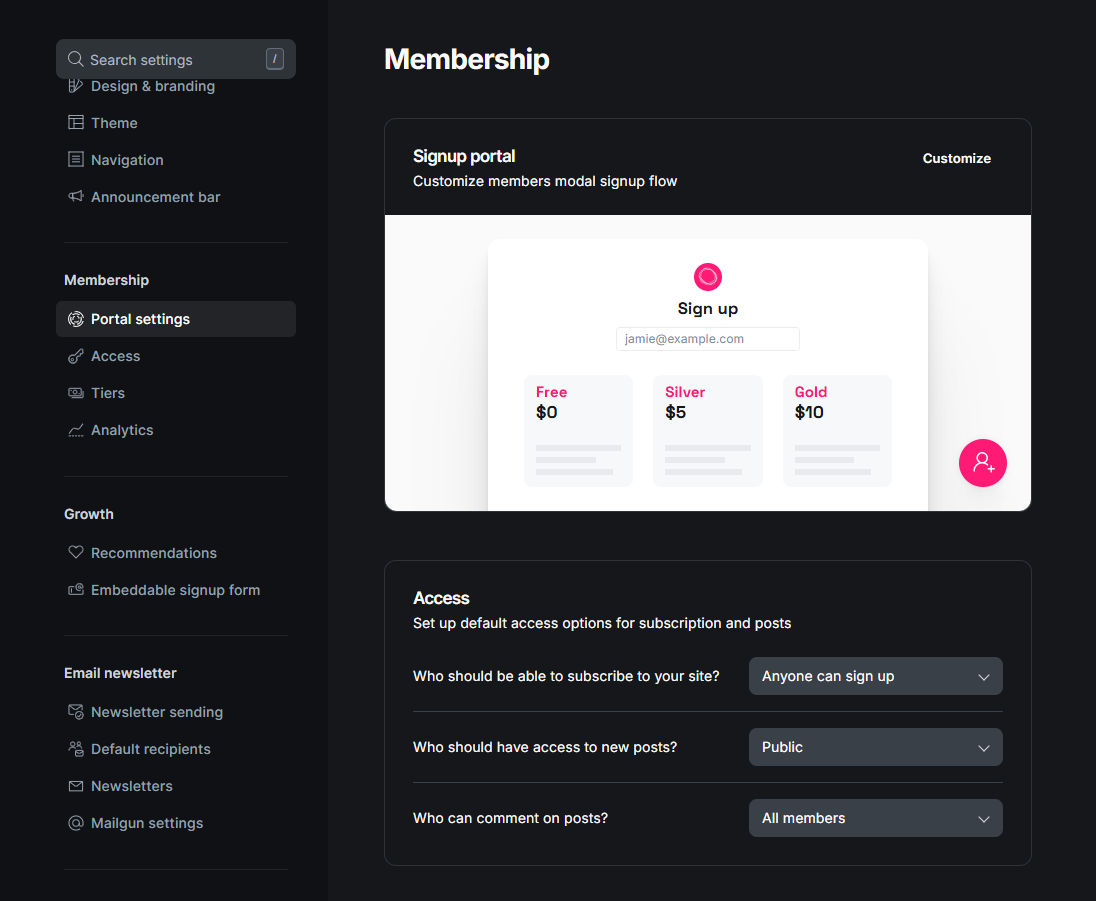
Inside Ghost Admin:
Settings → Membership → AccessDepending on your Ghost version and plan, you can enable member interactions and discussions.
Option 2 — Add Disqus to Ghost
Disqus is one of the most popular comment systems for blogs.
Advantages:
- easy setup
- moderation tools
- spam filtering
- familiar interface
How to Add Disqus
Step 1 — Create a Disqus Account
Go to:
https://disqus.comCreate your website profile.
Step 2 — Get Your Embed Code
Disqus provides an embed script similar to this:
<div id="disqus_thread"></div><script>(function() {var d = document, s = d.createElement('script');s.src = 'https://YOUR-SHORTNAME.disqus.com/embed.js';s.setAttribute('data-timestamp', +new Date());(document.head || document.body).appendChild(s);})();</script>Step 3 — Add the Code to Your Ghost Theme
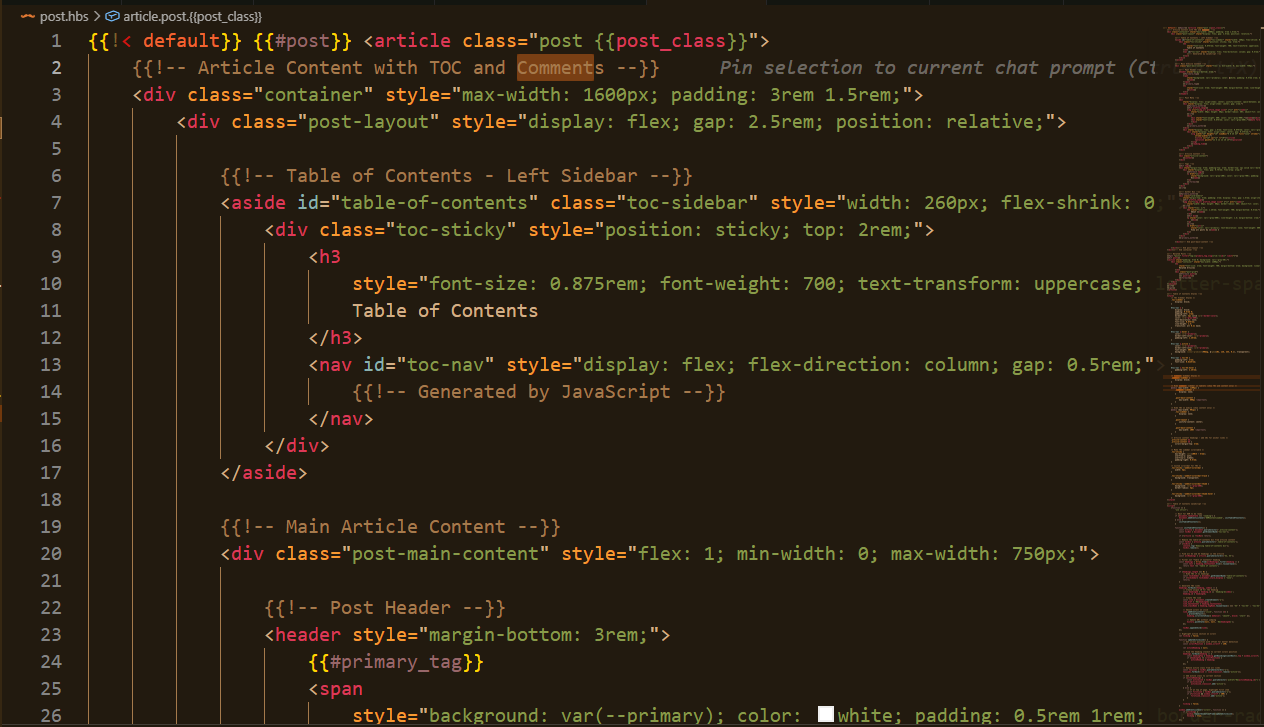
Usually inside:
/content/themes/YOUR-THEME/post.hbsPlace the comment block below the article content.
Real Example From My Workflow
When testing Ghost themes on my VPS, I usually integrate comments directly inside the article template so the layout stays consistent across all posts.
Option 3 — Commento
Commento is a lightweight alternative focused on:
- speed
- privacy
- minimalism
Good for:
- modern blogs
- minimalist websites
- performance-focused Ghost themes
Option 4 — Hyvor Talk
Hyvor Talk is another popular option for Ghost websites.
Features:
- clean design
- realtime comments
- moderation tools
- custom branding
It integrates very well with modern Ghost themes.
Which Comment System Should You Choose?
Performance Tips
Comments can affect website speed.
To keep your Ghost site fast:
- lazy load comments
- avoid heavy scripts
- optimize images
- use clean themes
Performance matters a lot for:
- SEO
- user experience
- conversions
Best Strategy for Membership Websites
If your Ghost website focuses on:
- memberships
- newsletters
- paid content
then native member discussions usually feel more premium and integrated.
For public blogs:
Disqus or Hyvor Talk are often easier.
Common Mistakes
1. Adding Too Many Scripts
Heavy comment systems can slow down pages significantly.
2. Ignoring Spam Protection
Always enable moderation and spam filtering.
3. Breaking Theme Layouts
Test comments carefully on:
- desktop
- tablet
- mobile
Especially if you build custom Ghost themes.
Final Thoughts
Adding comments to Ghost is easier than many people think.
The best solution depends on your website style:
- memberships
- community
- tutorials
- public blogs
- premium publications
Choose a system that matches your audience and keeps your website fast and clean.
Explore Modern Ghost Themes
Looking for modern Ghost themes optimized for:
- memberships
- newsletters
- communities
- blogs
- magazines
👉 Explore premium Ghost themes at https://ghostheme.com