Introduction
One of the best things about Ghost is how easy it is to customize your website with themes.
Whether you are creating:
- a personal blog
- an online magazine
- a portfolio
- a newsletter business
- or a membership website
Installing a new Ghost theme can completely transform your publication in minutes.
In this tutorial, you’ll learn exactly how to install a Ghost theme step by step.
Step 1 — Download Your Ghost Theme
Before starting, download the theme ZIP file from the marketplace or developer website.
Most Ghost themes include:
- the theme ZIP file
- documentation
- demo previews
- setup instructions
⚠️ Important:
Do not extract the ZIP file before uploading it to Ghost.
Step 2 — Login to Ghost Admin
Open your Ghost admin dashboard:
https://yourwebsite.com/ghostAfter logging in, navigate to:
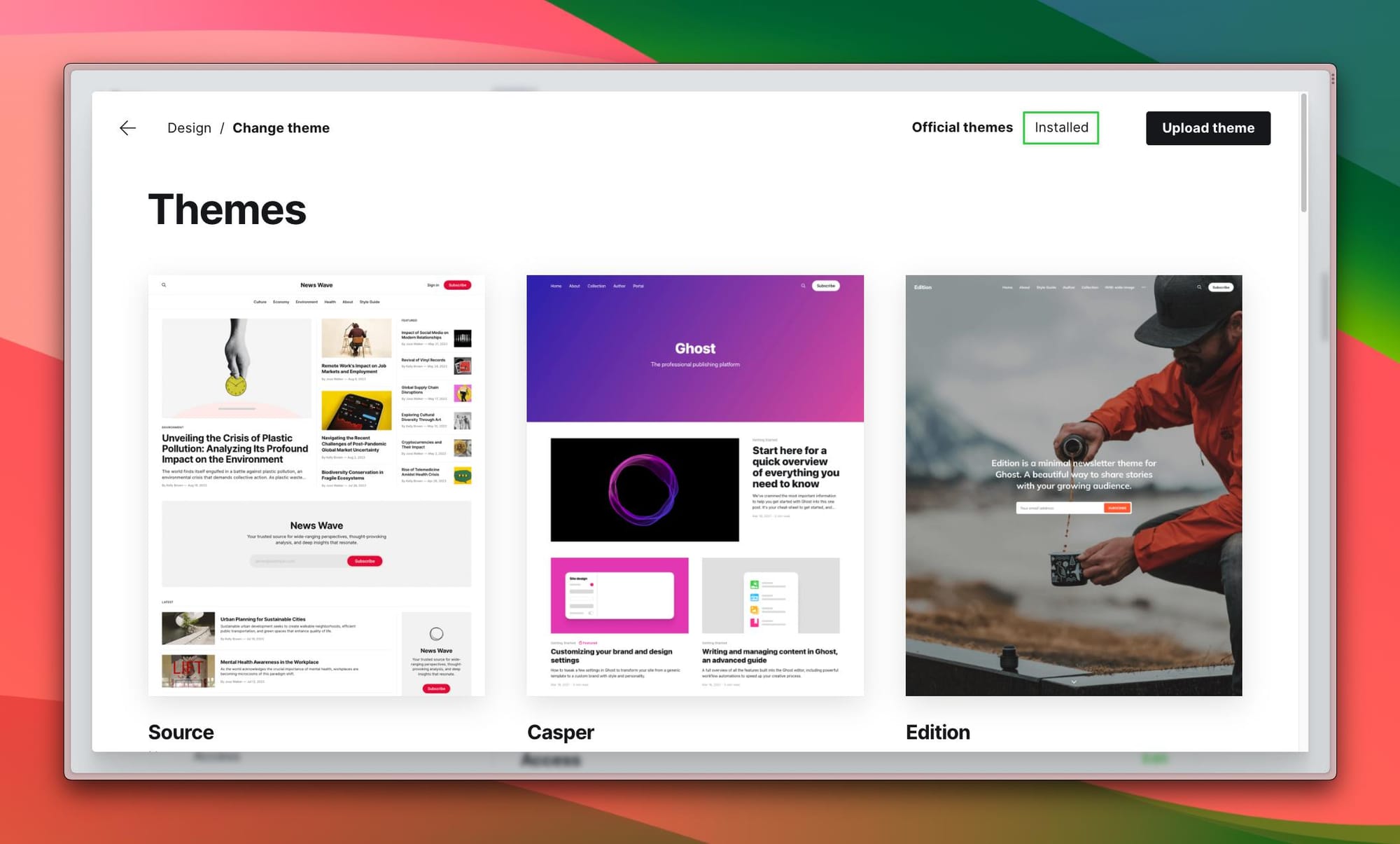
Settings → Design & BrandingStep 3 — Upload the Theme
Inside the Design section:
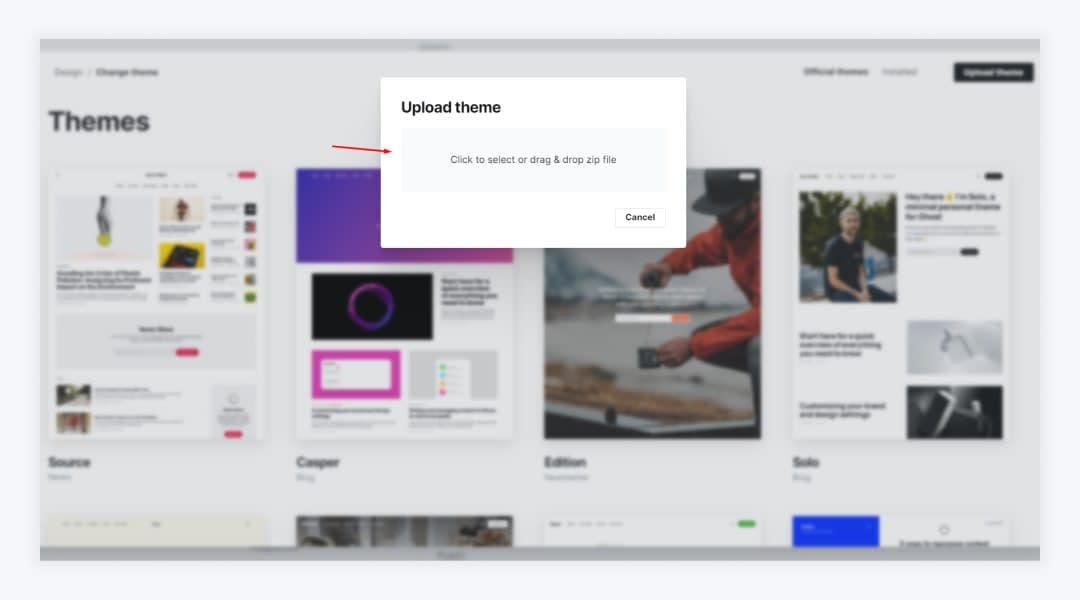
- Click Change Theme
- Press Upload Theme
- Select your theme
.zipfile - Wait for the upload to finish
Ghost will automatically validate the theme files.
Step 4 — Activate the Theme
Once the upload is complete:
- Click Activate
- Open your website
- Refresh the page
Your new design is now live.
Step 5 — Customize Branding
Now it’s time to personalize your website.
Go to:
Settings → BrandingYou can customize:
- Logo
- Site title
- Description
- Accent color
- Cover image
- Social media links
These settings automatically apply to most modern Ghost themes.
Step 6 — Configure Navigation
To edit your website menu:
Settings → NavigationRecommended pages:
- Home
- About
- Contact
- Membership
- Archive
- Authors
Good navigation improves both user experience and SEO.
Step 7 — Add Your First Posts
Your theme will look much better once you add:
- featured images
- tags
- authors
- multiple posts
Try creating:
- tutorials
- guides
- inspiration articles
- newsletters
- product reviews
A content-rich homepage always feels more professional.
Common Problems During Installation
“Invalid theme uploaded”
This usually happens when:
- the ZIP file was extracted
- files are missing
- the theme is not made for Ghost
Always upload the original ZIP file.
Theme Looks Different From Demo
Most demos use:
- featured posts
- custom navigation
- high-quality images
- multiple tags/categories
You may need to configure your content to match the demo layout.
Tips for Choosing a Good Ghost Theme
A high-quality Ghost theme should include:
- responsive design
- fast performance
- SEO optimization
- membership support
- newsletter support
- clean typography
- dark mode (optional)
Choose a theme designed specifically for your content style.
Final Thoughts
Installing a Ghost theme is one of the fastest ways to create a professional website.
With the right theme, you can build:
- blogs
- magazines
- portfolios
- creator websites
- premium newsletters
—all without touching complicated code.
If you’re looking for modern and optimized Ghost themes, explore themes built specifically for speed, design quality, and conversions. online casino